Setting it up
What it takes to start
What it asks of you and what it never does, then every step from a site made for you to your first members — and how to see yours first.
It is all yours. You just never have to look inside it.
Your site runs on its own, and your video, photo, Zoom and payment accounts are in your name, on your own card. The difference is that the app does the parts that would otherwise need a developer — so running your own platform stops meaning understanding one.
What it asks of you
- Say what you are called, and pick two colours
- Say what you sell, and what it costs
- Say when you teach, once
- Film your sessions and drag them in
- Decide who gets in, and on what
All of it from one page, on a phone, in the ten minutes after a class.
What it never asks you about
- A site of its own, backed up every day from the first
- Your video stored and streamed to any phone, on any signal
- Signed links that only ever play for someone with a pass
- Every payment matched to its pass, with a numbered receipt
- A Zoom meeting for every class, and its recording filed after
- An app your clients install, with your icon on it
- Your own address on the web, padlock and all
No terminal, no config file, no deployment vocabulary.
What setting it up actually involves
Every step, in the order it happens — including the one done for you before you arrive, and the one you can skip if you do not teach live. None of them needs a developer: the hardest thing you do is sign up for a video account, and your studio shows you how.
Step 1 of 7
Your site is made, in a corner of its own
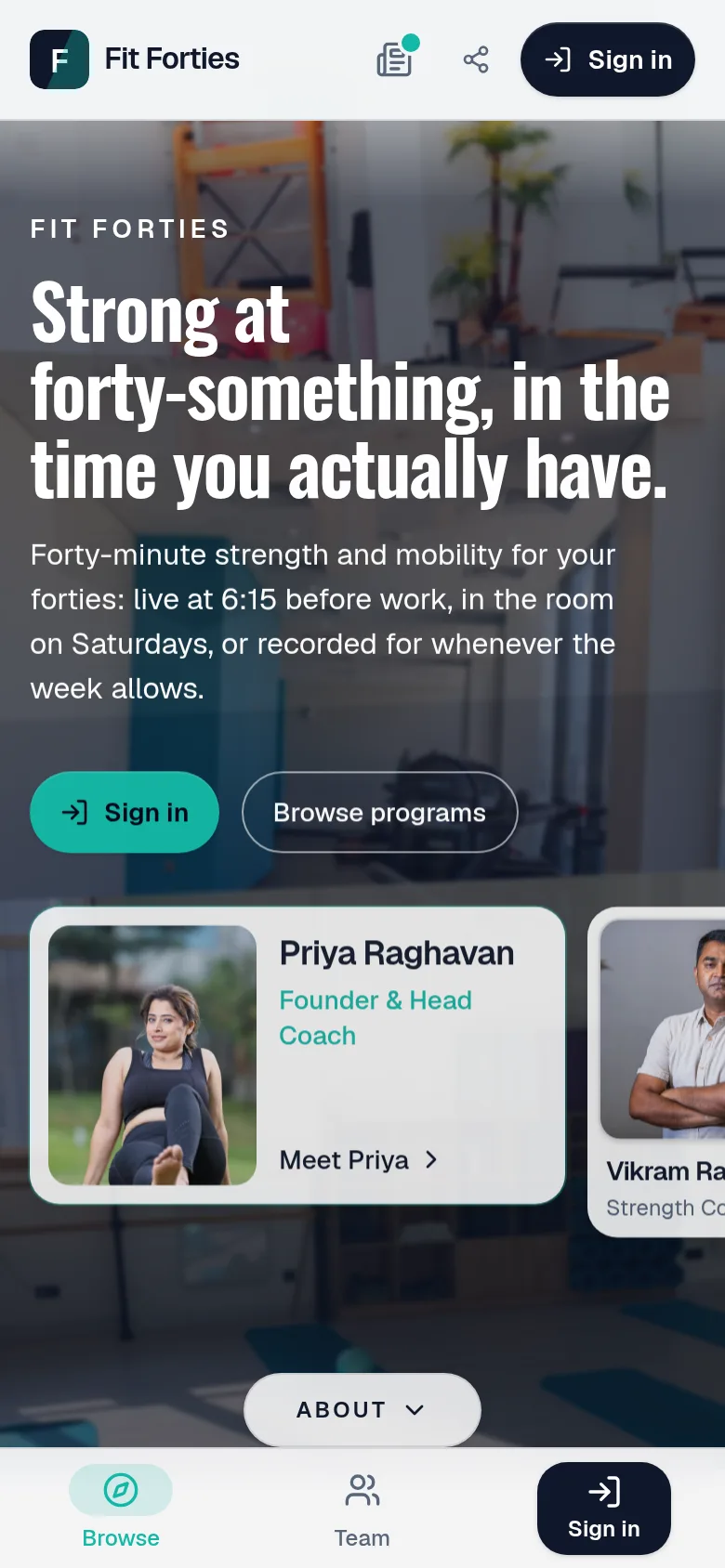
Its own database and its own address, with nobody else's members beside yours.
- Backed up daily, and recoverable to any minute of the last week
- A monthly budget that warns, and never switches your site off
- No other creator's outage is ever yours
Done for you, before you sign in
Step 2 of 7
Sign in, and it is yours
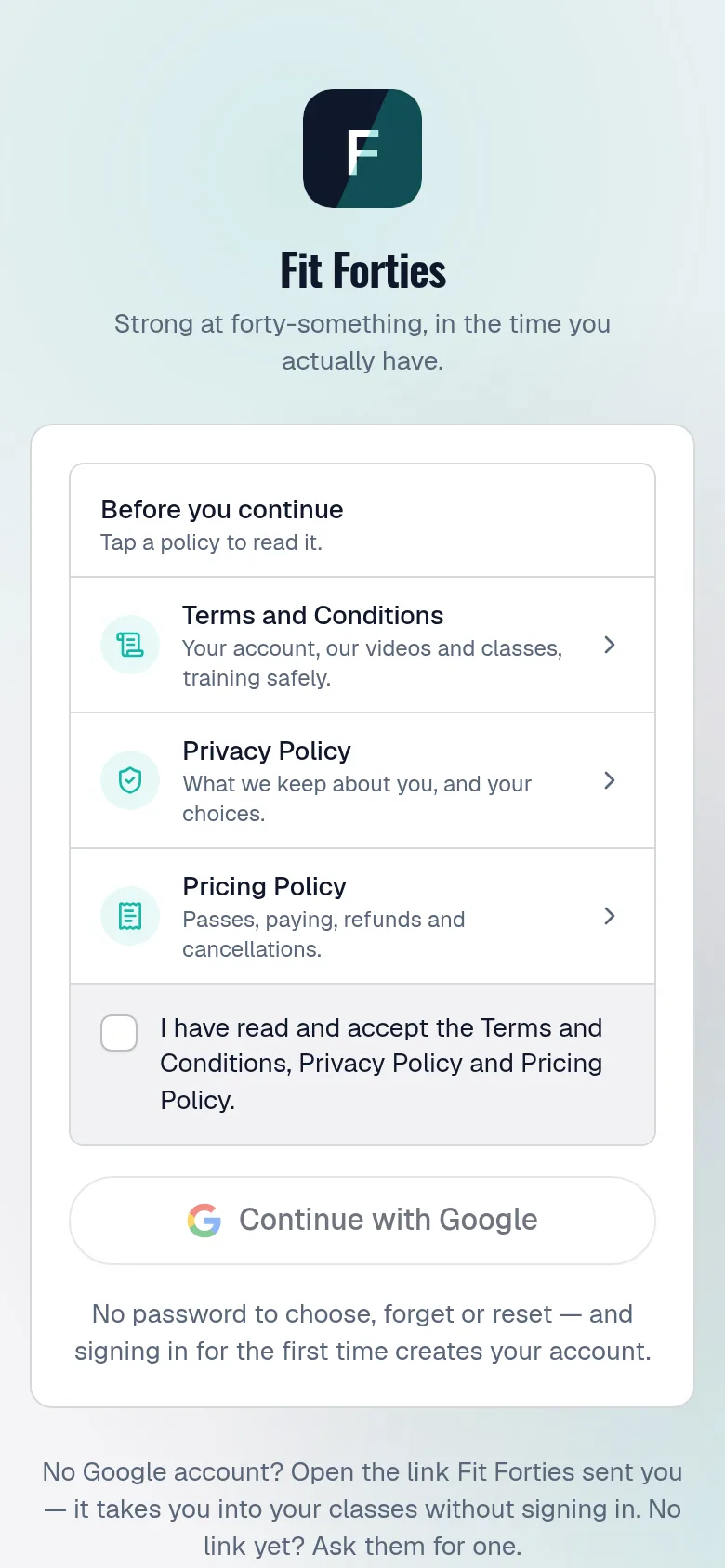
Your Google address is named as the owner, and your first sign-in hands the site over.
- One Google prompt, no password to choose
- Whoever set it up gets in only while you let them
- Every page they changed, listed for you
About a minute
Step 3 of 7
Then the rest, at your own pace
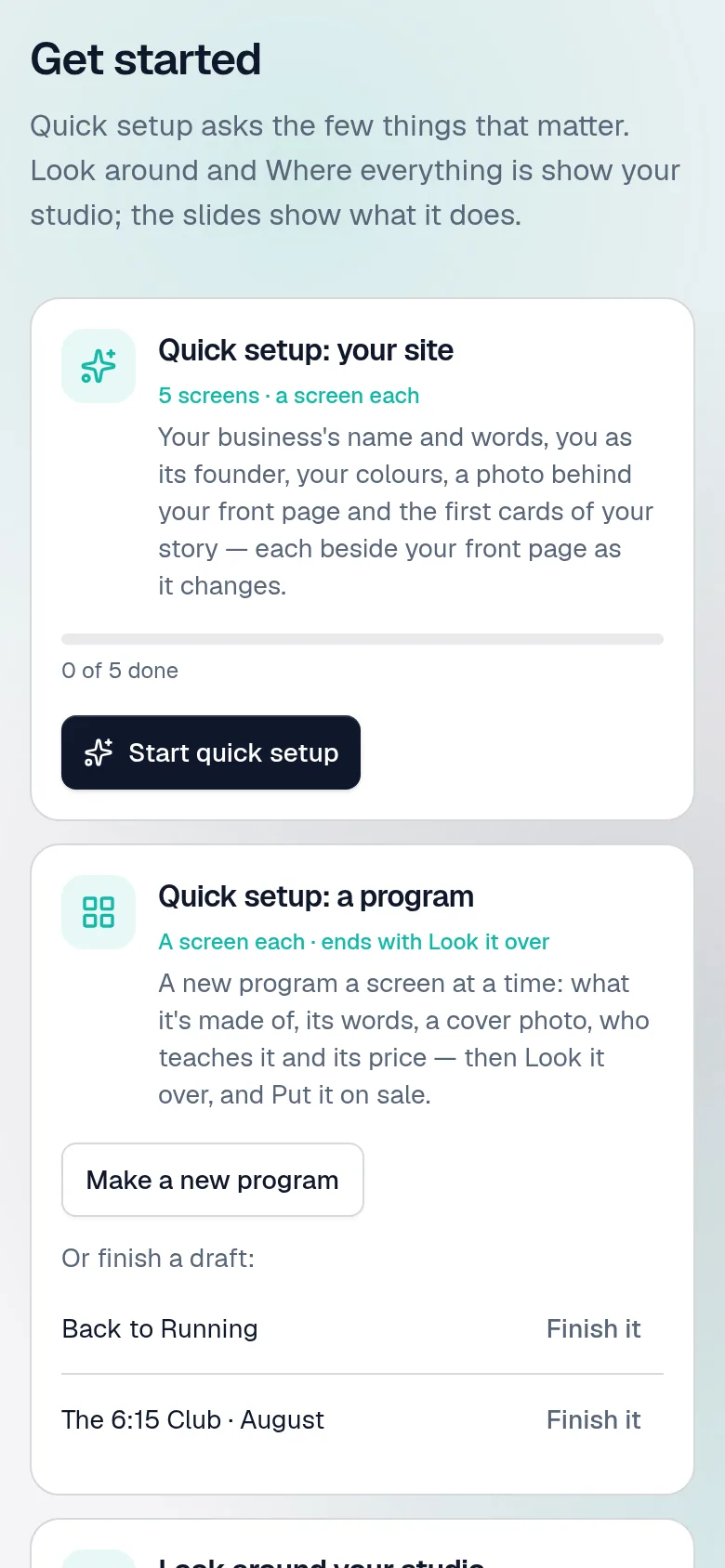
A few simple steps on your Overview, one at a time — and quick setup, a look around and the slides whenever you want them.
- Quick setup: the basics, a screen each
- Your front page, with free photos to start from
- A look around your studio, a stop for each part of the menu
At your own pace, on a phone
Step 4 of 7
Connect your video, photos, Zoom and payments
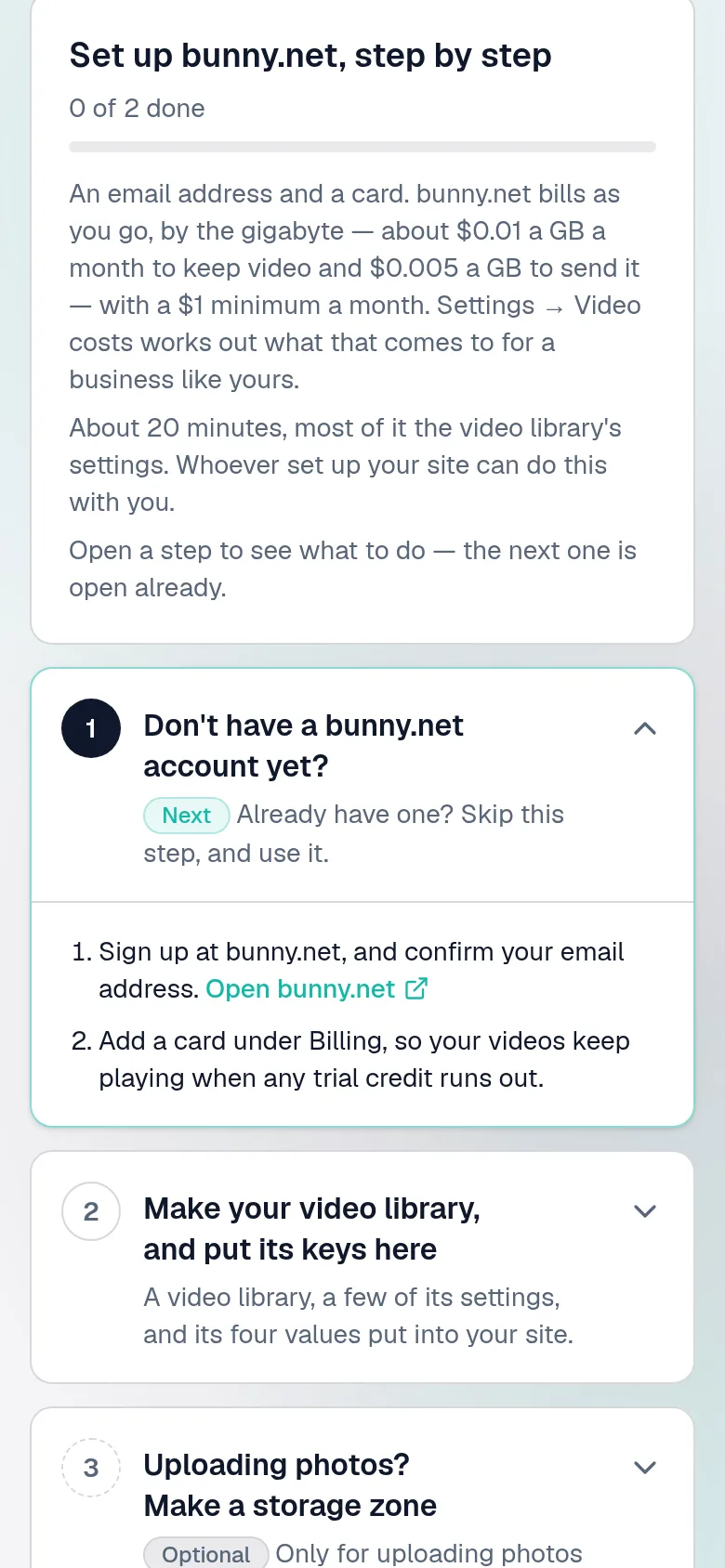
Each has a tab that shows how to set it up from nothing, step by step, in plain words.
- Cloudflare or bunny.net, with what each would cost you compared first
- Razorpay, to take payment on your own site
- Keys checked before they're saved, and never shown back
About 20 minutes each
Step 5 of 7
Make what you sell
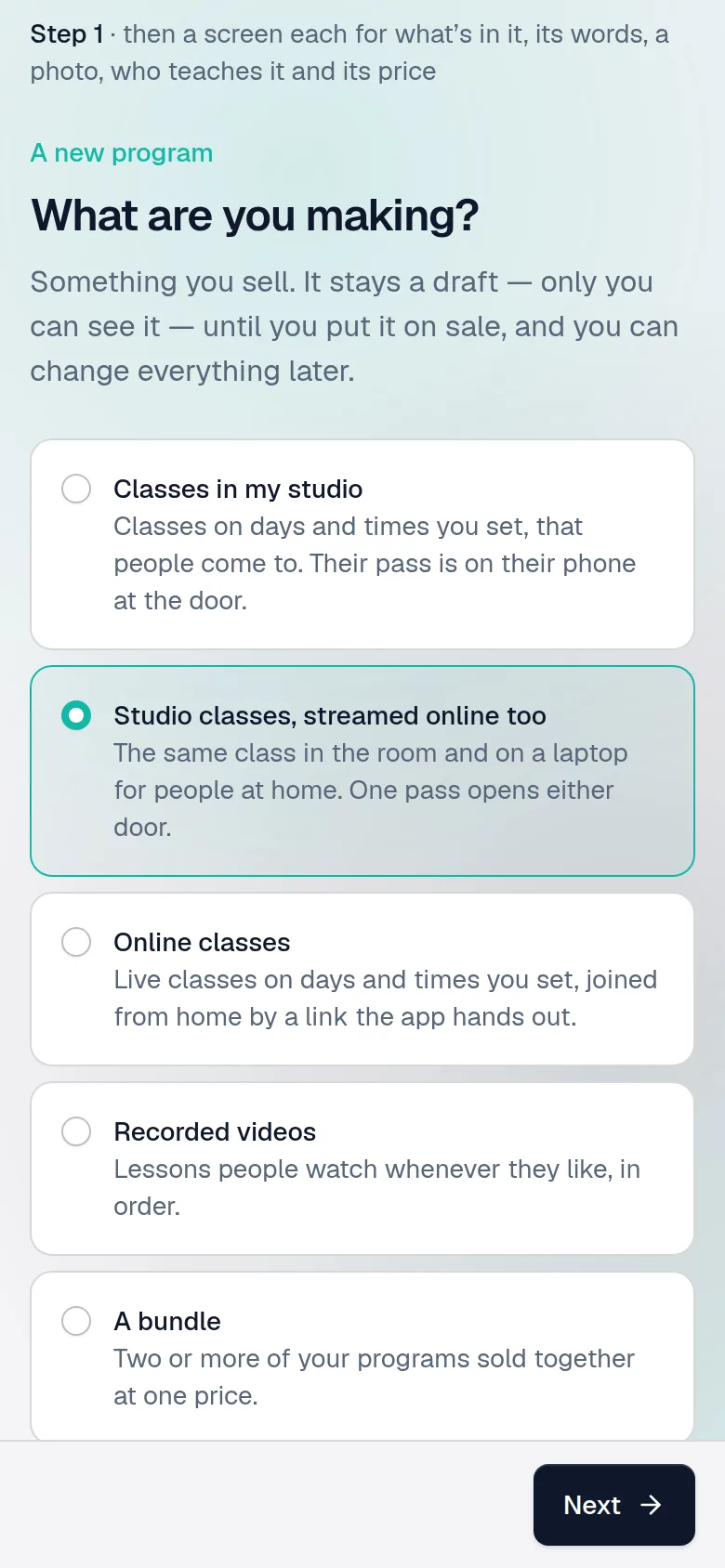
Five plain choices, then a screen each — what's in it, its words, a photo, its price — ending in Put it on sale.
- Drafts stay invisible until you say so
- Plans: four classes, every class, or from home
- Every form shows what members will see, as you type
Minutes, plus your footage
Step 6 of 7Optional
If you teach, say when — once
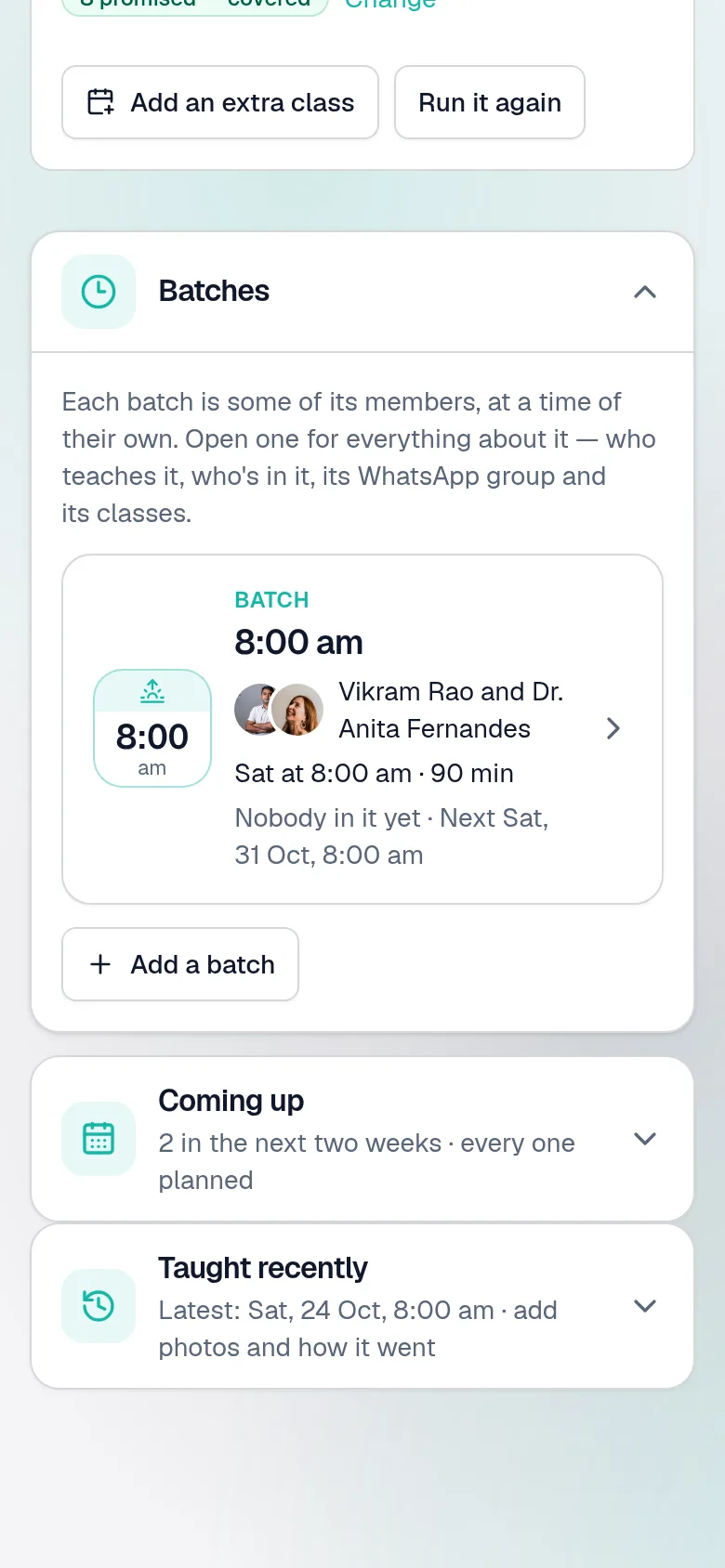
Days and times on a programme make all of its classes — each time a batch with its teacher, changed together, and each class a page of its own.
- Hand a batch to another teacher, or cover it for a week
- Connect Zoom and each class gets its own meeting
- Members tap Join — they never see a link
- Next month is Run it again
About 10 minutes, once — skip it if you don’t
Step 7 of 7
Let your first members in
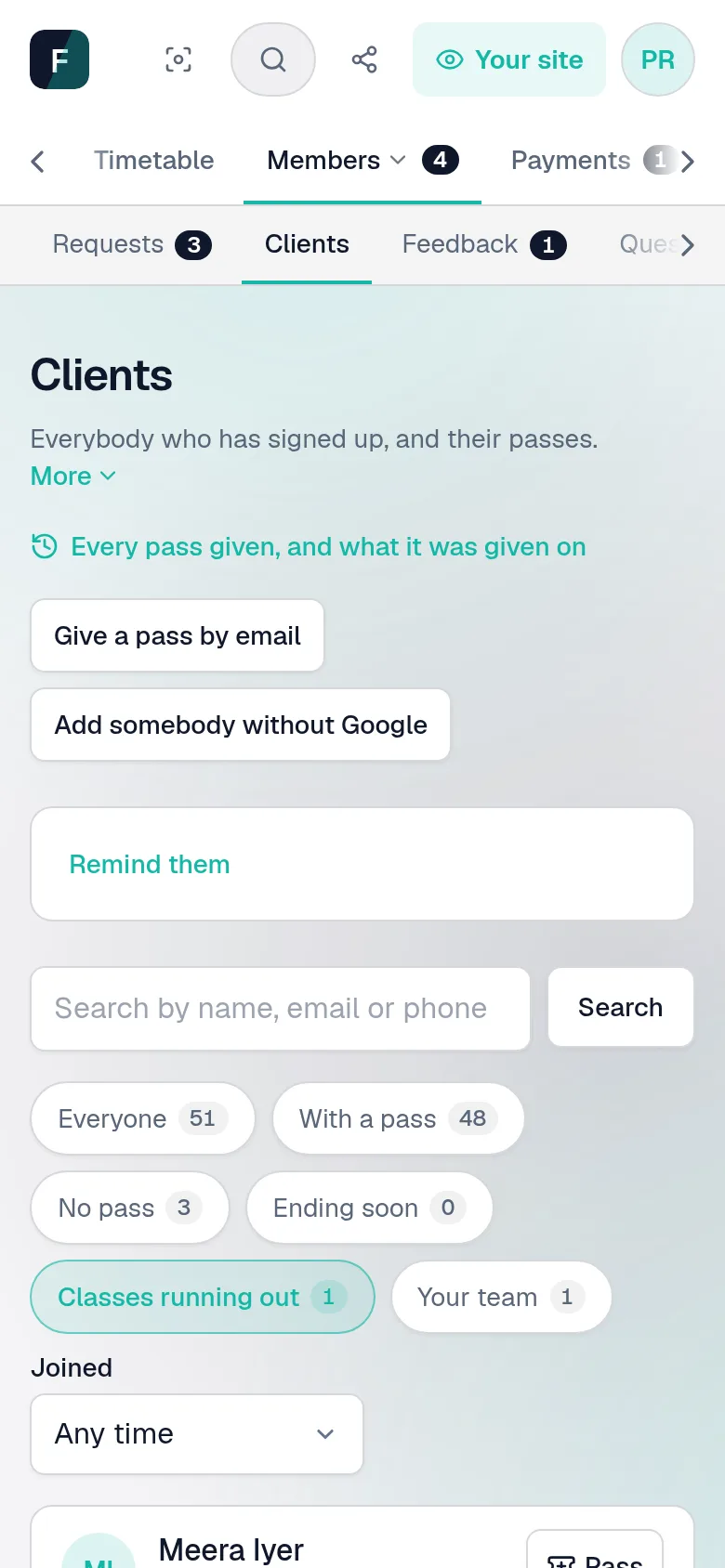
Bring the people who already train with you: a pass each from Clients, with what they paid. New people ask to join from your site, and you press Let them in.
- Give a pass by email — theirs at their first sign-in
- No Google? A link of their own, sent from your WhatsApp
- It ends when the term does, or when you say
Seconds, per member
See yours, in about two minutes
Not a tour of somebody else’s studio. Answer ten questions — your name, your colours, what you sell and to whom, who your first clients are — and the walkthrough redraws itself as your studio, from both sides of it.
To be clear: nothing is created. This is a working picture of what your app would look like, drawn in this browser tab. No account, no sign-up, no deployment, no card — close the tab and it is gone.
Your chair
Simulation · September 2026See it with your name on it
Answer nine quick questions and this walkthrough redraws itself as your studio would look. A picture, not a deployment — nothing is created and nothing is charged.
- Your name, logo and colours, applied live
- Your first programme, priced by you
- Your lessons, in your words
- Your class times, on a calendar
- Your first client, let in by you
- Then extend it or take it back
Their chair
Simulation · September 2026Then their side of it
The same mock-up from the other chair — showing the programme you just described, to the client you just named. Same data, two sides of it.
- Only what you gave them
- Today's class, one tap to join
- Picks up exactly where they stopped
- Missed it? The recording waits a fortnight
- Sits on their home screen like any app
- No ads, no feed, no upsell
Your side gets built first — the same ten questions. A client's screen is drawn from your answers.
Show me the member versionAnd ones that are not simulations
Live · real videoActual deployments, the same as the one you would get — each running a different kind of training business. Real catalogue, real sign-in, real signed playback.
Or just look
Real screens · October 2026A week at the demo studio, one ordinary job at a time — from both sides of the door.
Want one of your own?